
Manage your tenancy: rent receipts, repairs, services and messages
Open My Tenancy in the guest portal. Use Rent Receipts to tell your owner you have paid rent (they confirm it), Maintenance to raise a repair on your unit, Services to request a managed service, and Messages to write to your owner. Your tenancy must be Active, which needs your Aadhaar and PAN verified once.
Before you start
- A tenancy your owner created for you, or one you requested and the owner approved
- Identity verification done. Until then the tenancy shows "Awaiting your KYC"
- For a rent receipt: the amount, the date you paid and whether it was cash or online
My Tenancy shows your unit, lease dates, monthly rent and deposit, and your owner’s contact. If you rent more than one unit, a switcher at the top lets you move between them. The tabs below it are Overview, Rent Receipts, Maintenance, Services and Messages.
- Activate the tenancy
If the status badge says "Awaiting your KYC", press Verify with DigiLocker and complete the Aadhaar and PAN check. It takes under a minute. The tenancy goes live afterwards and you and your owner are both notified. One verification activates every pending tenancy you have.
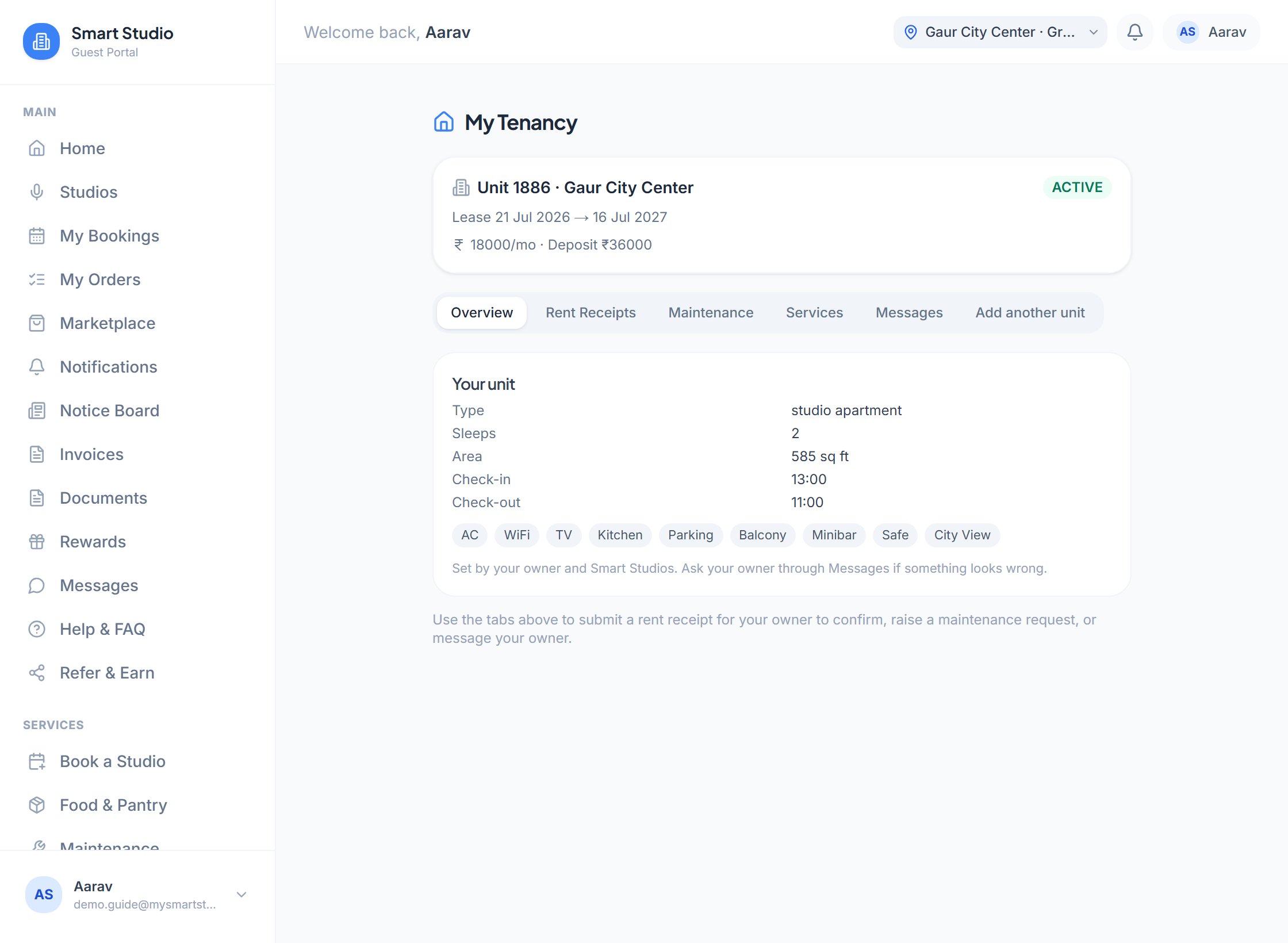
My Tenancy. The status badge shows Active once identity verification is done. - Log a rent payment
Open Rent Receipts, press Report payment and enter what you paid. Your owner sees it in their Tenants tab and either approves it, correcting the amount or date if you mistyped, or rejects it with a reason. A rejected receipt stays on record and you can submit a corrected one.
What this screen needs from you
What you enter Required Format Example Amount paid Required Rupees, more than 0 18000Payment date Required Date 5 Sep 2026Payment mode Required Cash or Online OnlineReference noteA UPI reference or cheque number helps your owner match it. Optional Free text UPI ref 4128…Submitting the same amount and date twice while the first is still pending is blocked, so a double tap does not create a duplicate.
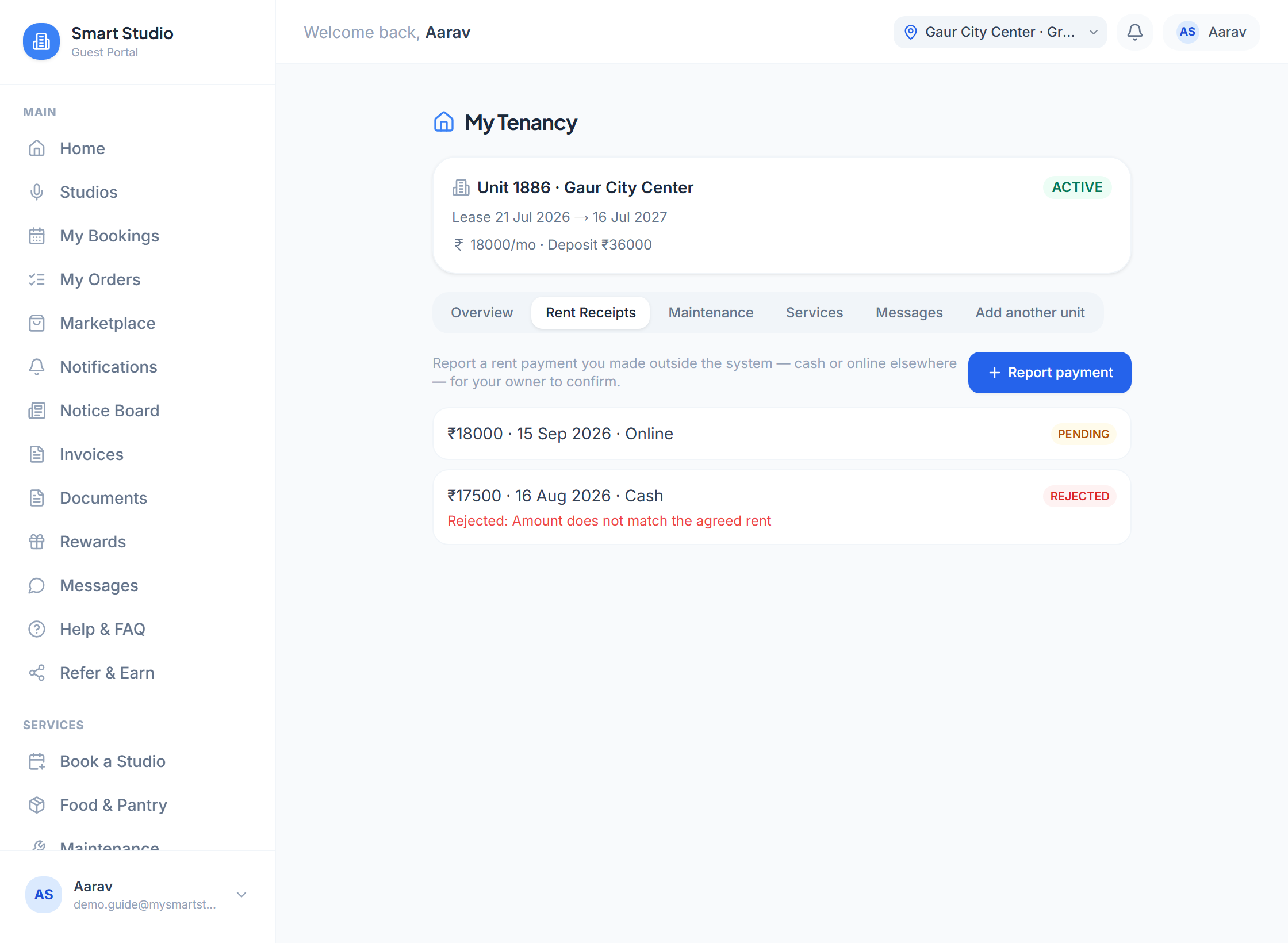
Rent Receipts. Press Report payment; each receipt shows Pending, Approved or Rejected, with the reason if rejected. - Raise a repair
Open Maintenance, describe the issue and choose a priority. It is logged as a maintenance ticket on your unit and the maintenance team picks it up.
What this screen needs from you
What you enter Required Format Example Issue title Required Short text AC not coolingDescription Optional Free text Bedroom AC runs but blows warm air since MondayPriority Required Choose one Medium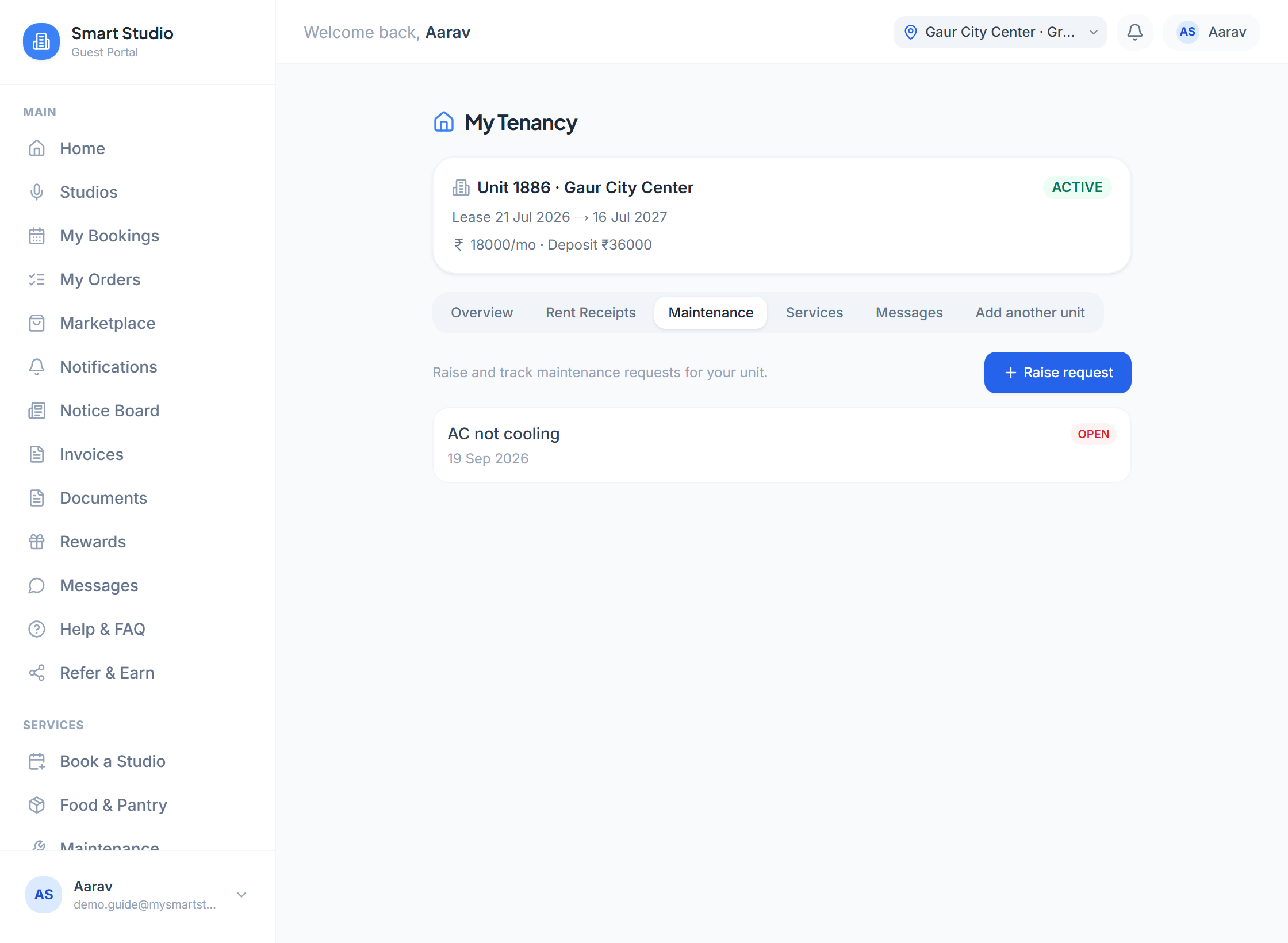
Maintenance. Describe the issue and choose a priority. - Request a service
Open Services, choose the service, add a preferred time if you have one and any notes. The request goes to your owner, who approves it before the work is arranged, because managed services are paid from their account, not yours.
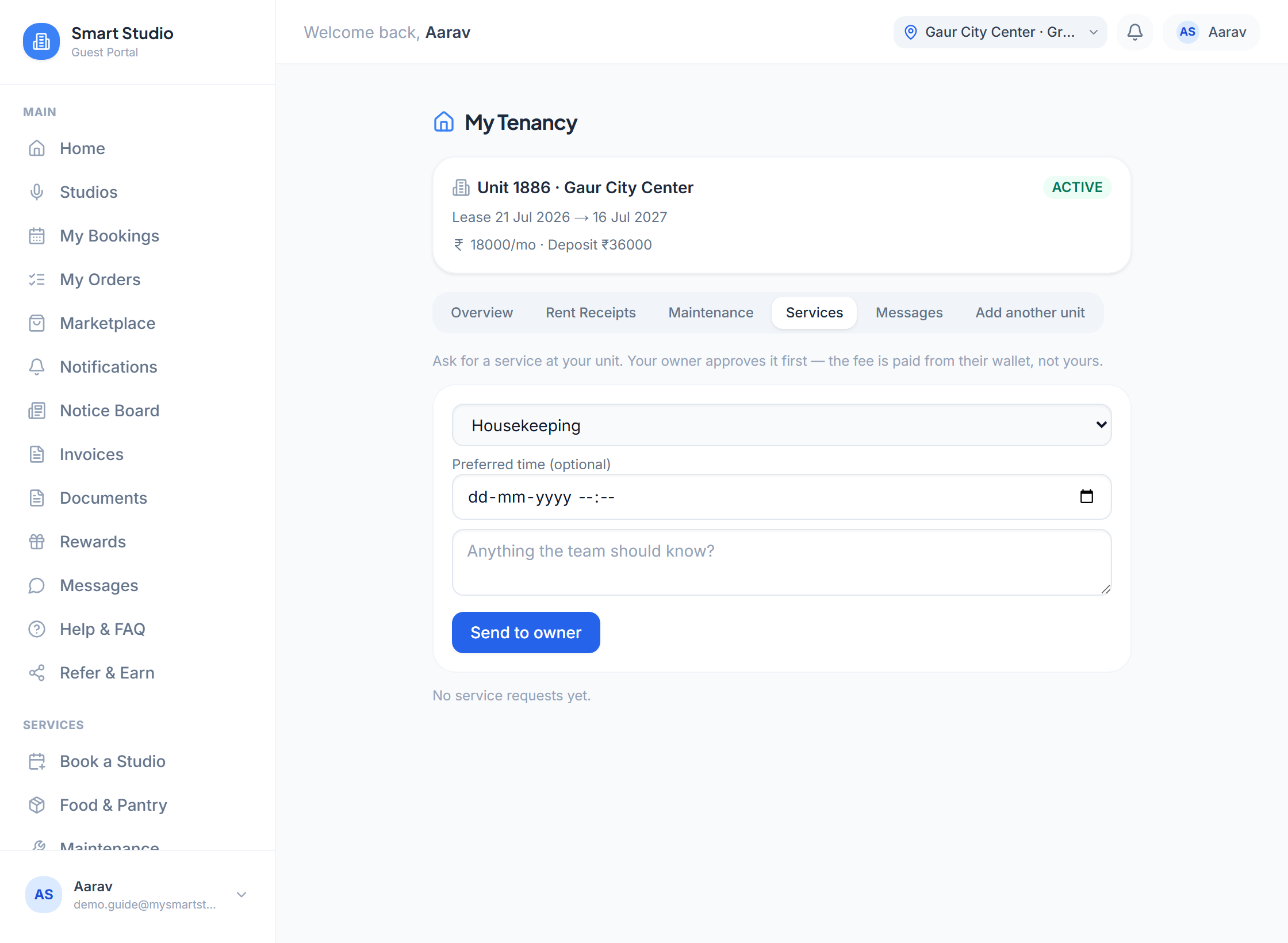
Services. Requests go to your owner for approval. - Message your owner
Open Messages and write to your owner. A red badge on the tab shows unread replies.
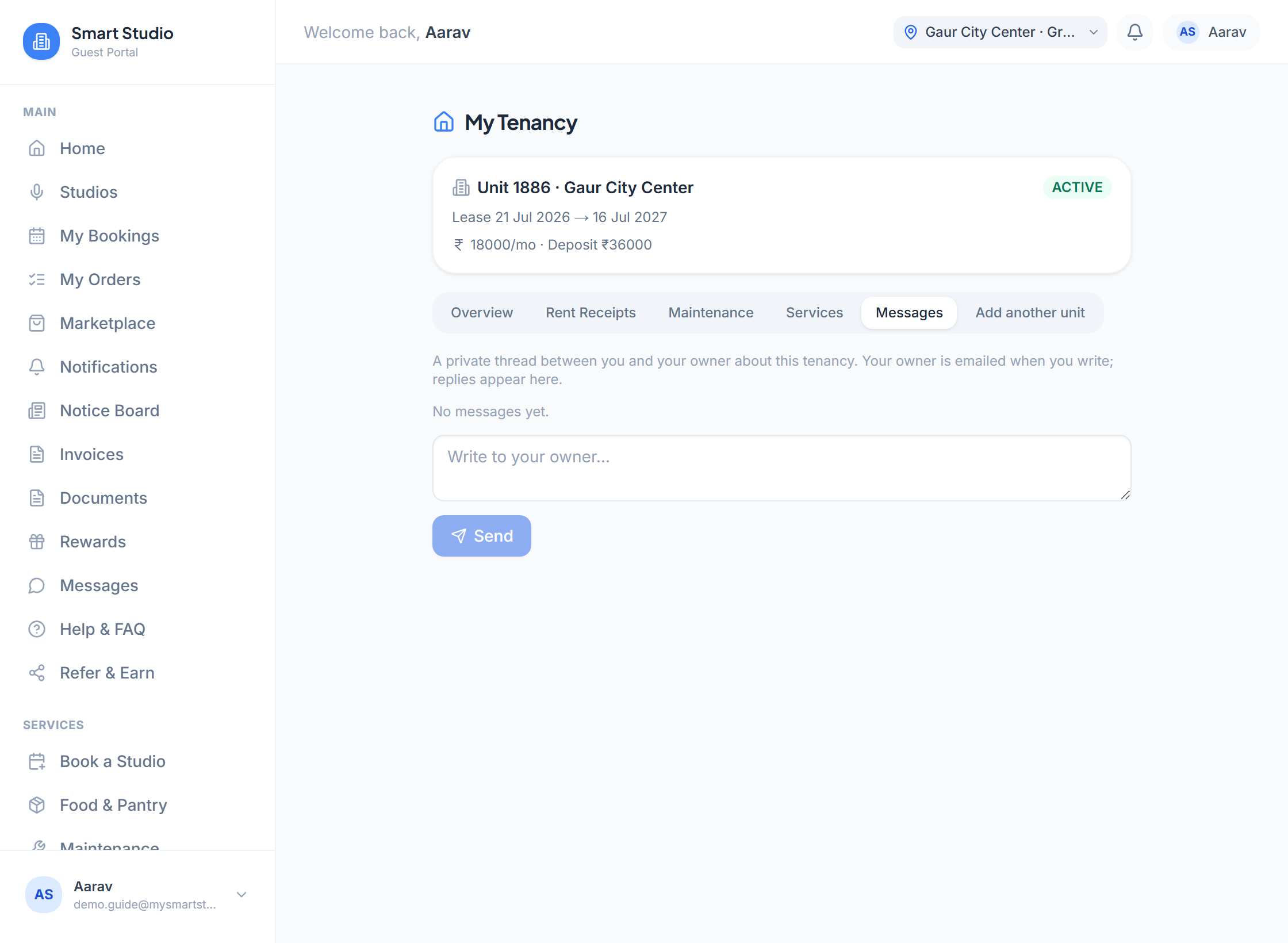
Messages. Each tenancy has its own thread.
What happens next
- An approved rent receipt becomes part of your payment history, which feeds the tenant record owners see
- Repairs appear as tickets you can follow until they are closed
- Messages are kept per tenancy, so if you rent two units each has its own thread
Hosting guests: add your own guest, or block nights
If your owner has handed guest bookings for your unit to you, My Tenancy has an Add Guest / Block tab. Press Add booking / block nights and choose Own guest (offline) for someone who booked directly with you, From an OTA for a guest from a listing of yours that is not connected, or Block nights to stop the unit being sold on dates you need. Enter the dates (or a day-use block), the guest’s name and the same details a website booking asks for: country, adults and children, arrival time and special requests. The dates must fall inside your lease. The website and the unit’s connected OTA listings stop selling them straight away. These bookings are paid to you, not to Smart Studios; blocked nights add no booking.
Show where your unit is on the map
The Overview has a card called “Where is this unit on the map?”. Click your unit’s exact spot on the floor plan, or, if no floor plan has been uploaded for your floor yet, pick the nearest landmark from the list. Your pick shows as “Awaiting admin approval” until an admin checks it, then as “Live on the map”. Once live, walking directions and the listing floor plan use it.
If something goes wrong
- My tenancy says "Awaiting your KYC"
- Press Verify with DigiLocker on that page. The rent receipt, repair and service tabs work fully once the tenancy is Active.
- My owner rejected a rent receipt
- The reason is shown on the receipt. Submit a new one with the corrected amount, date or reference. The rejected one stays as a record.
- I cannot submit a receipt
- Receipts can only be submitted against an Active tenancy. An ended tenancy cannot take new ones.
- I do not see a Day-Use Bookings or Add Guest / Block tab
- Those tabs appear only if your owner has handed guest bookings for your unit to you. Ask your owner.
- “Your lease runs … the nights must fall inside it”
- You can only add guests or block nights within your own lease dates.